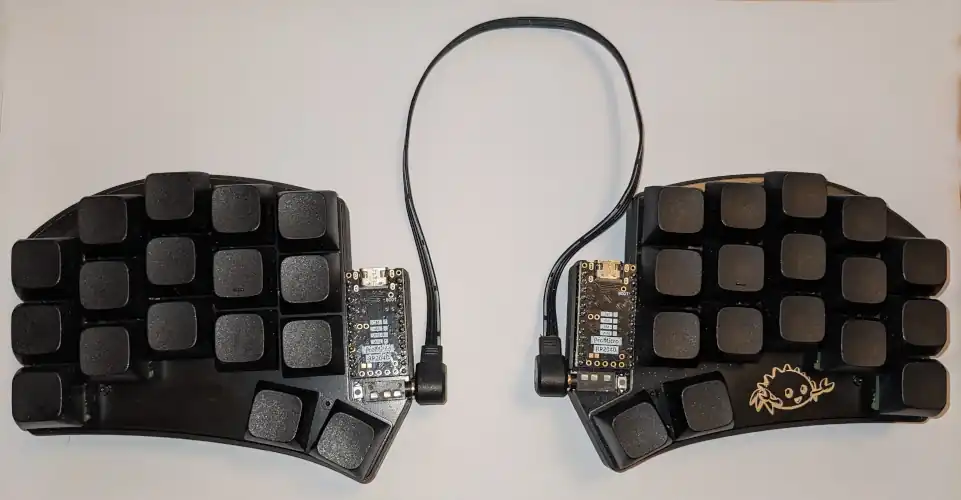
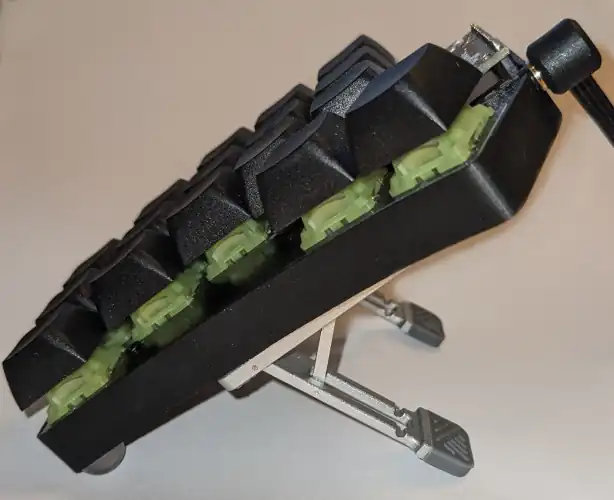
This article is a bit different from the others in the portfolio. It’s dedicated to my friends and colleagues who asked me about the strange-looking keyboard on my desk. Maybe I can pique your interest in exploring the world of ergonomic custom keyboards with me.
General Idea
Many people spend large parts of their waking hours with their hands on a keyboard, notably computer professionals like programmers. Because the traditional QWERTY keyboard was not designed with ergonomics or typing speed in mind, people began developing alternative designs.
Physical Layout
The first idea is to arrange the keys according to the fingers. Since
the fingers move vertically, the keys on ergonomic keyboards are
arranged in columns, with each column corresponding to one finger. Using
fewer physical keys reduces the travel distance of each finger, with
most fingers only ever touching three different keys (except the thumb
and index finger, which touch two and six, respectively). This is
achieved through layers. You are already familiar with layers
since traditional keyboards have a Shift key that, when
held down, changes the character displayed. Most notably, it provides
the capital version of a letter, or a symbol instead of a number. The
idea is to have additional layers that can be accessed by holding down
one of the thumb keys. This way, numbers, navigation keys, and symbols
don’t need their own dedicated physical key.
Another benefit to a physical layout matching the human hand is that hitting the wrong key is much less common. I never have to move my whole hand and the maximum distance my finger has to move is one key, mostly just straight up or straight down (with the exception of the index finger, which also goes sideways sometimes). In practice, this higher accuracy also translates to increased typing speed.
Logical Layout
The next design challenge is to create a good mapping between the inputs (e.g., letters and symbols) and the physical keys. This is freely configurable and I’ll show you what works for me as a someone who writes mostly code, English text, and German text.
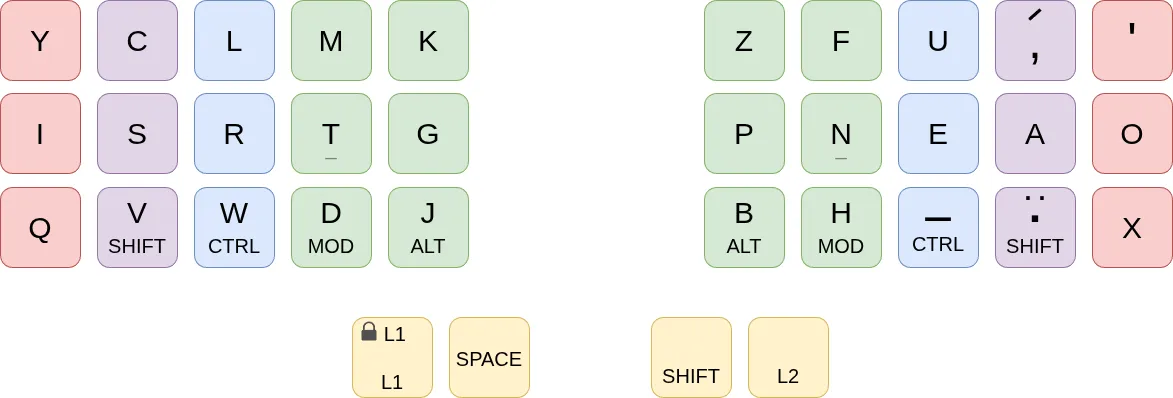
As with the traditional keyboard, the lowercase letters, comma, and
period are the primary keys and make up the main layer, which is also
called the base layer or L0. Since I write code in Python frequently, I
also added the underscore as a regular key for quick access. Otherwise,
the layout I’m using here is known as the “ISRT” layout and is one of
hundreds of computer-optimized alternatives to QWERTY.
Ideally, the most frequently used letters are easily reachable. In
English, E, T, A, O,
I, N, S, and R are
often considered the most common letters, and together, they make up
about 60% of all letters in text. Since these letters correspond to the
keys my fingers rest on, I don’t need to move away my fingers at all for
many keystrokes. Conveniently, many other languages, such as German,
share most of these eight most common letters.
Furthermore, letters that commonly occur in sequence (e.g.,
T and H) are placed so that they are not
pressed by the same finger, improving speed and comfort.
Finally, holding down a key instead of tapping it can reveal
different functionality. For example, holding down the W
key does not type “w”; instead, it acts like holding down the
Ctrl key. This way, the keys that need to be held down are
much closer to where the fingers are, so there is less strain on the
wrist and pinky finger than with traditional keyboards.
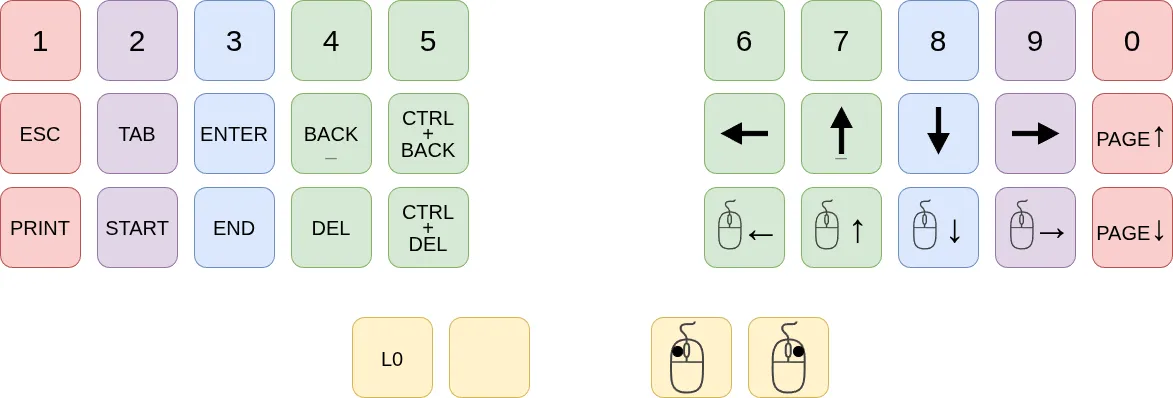
The navigation layer is probably my second most used layer. It is
accessed by holding down the leftmost thumb key. Besides numbers, it
contains all the keys needed to navigate text. The more commonly used
keys, such as Enter and Backspace, are located
in the center, while the less commonly used keys, such as
Print Screen, are located on the edges.
I can also move the cursor and do clicks through key presses, which works surprisingly well due to the cursor acceleration that reacts to how long I’m holding down the respective mouse movement key. A regular mouse still works better, of course, but it’s nice to have a backup.
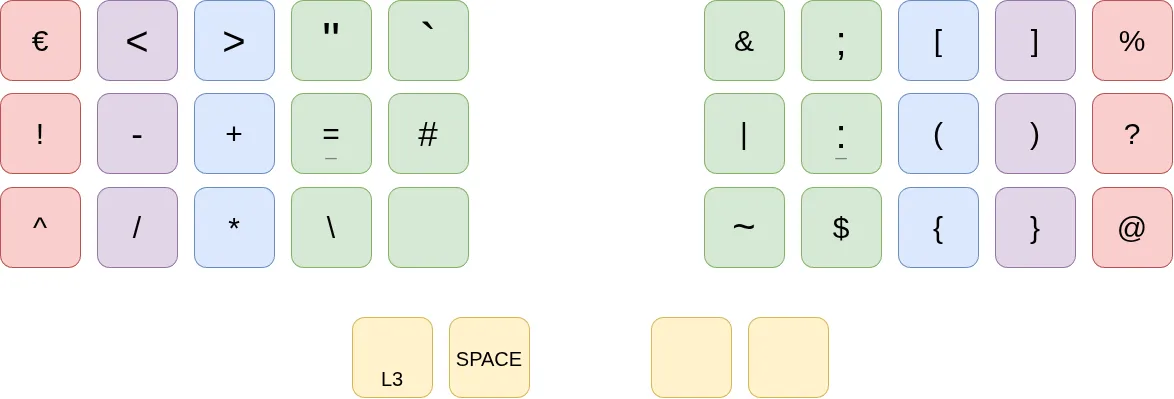
The symbol layer, adapted from Pascal Getreuer’s ideas, prioritizes
common code patterns, such as +=, -=,
!=, ${}, /*, */,
->, and =>, ensuring that they are not
pressed with the same finger. It also places frequently used symbols,
such as =, -, and (), in the
center. In contrast, keys that are less conveniently reachable, such as
those in the corners where you need to move your pinky or move your
index finger diagonally, are assigned to more rare inputs, such as the
symbols ^ and ~.
The Shift layer, accessed by holding down the third thumb key, is not
shown here, but it unsurprisingly contains capitalized letters. An
additional perk is that when I press Shift and period then
the next letter pressed will be the “German version”, e.g., “ä” instead
of “a” or “ß” instead of “s”. Pressing Shift and comma
turns the next press into “Spanish mode”, with “á” instead of “a” and
“ñ” instead of “n.” If you primarily type in languages other than
English, you may want to use a more accessible combination, for example
switching to your language-specific layer by holding down the thumb key
that is currently Space when tapped or by replacing what
are now the cursor movement keys with, e.g., ä,
ö, ü, and ß.
I have an additional layer L3 containing the keys F1
through F12 and the volume control keys, but I rarely use
them.
Closing Remarks
I hope you found this overview interesting. There is a lot more to talk about and I’m happy to do so in person.
FAQ
How was the transition from a traditional keyboard?
I personally practiced the new layout for about two weeks for half an hour per day before switching completely. For practice, I used MonkeyType with custom word lists, starting with words that only contain the most common letters, then slowly expanding to more letters. After a week of switching I was typing fast enough to not feel like I’m being held back by the less familiar new layout anymore and after less than a year I was already considerably faster than I had been with my old keyboard.What switches are you using?
I have one keyboard with “Outemu Silent Lemon v3” and another one using “Gazzew Boba U4 silent”, both of which are tactile and both are silent switches, which makes them suitable for shared office environments. I like both, however, the latter need to be pressed harder, which is why my first thumb (which I hold down often) key uses a lighter linear switch.How can I get an alternative keyboard layout to work with Vim and similar programs?
basically you reassignH,J,K,Lin normal mode toP,N,E,A. In Vim with e.g. “nnoremap p h”. There are some more caveats, but I’m happy to help. In other programs like LF or neomutt, you just assign those 8 letters to specific actions. The other letters that are not on the right home row, I mostly kept, i.e.ufor undo in Vim. For the beginning, you can usually just use the arrow keys until you updated all you programs’ configs.What about wireless keyboards?
There are wireless versions of most such keyboard models, but they are slightly more complicated to set up and maintain, e.g., you have to recharge them regularly. I personally find wired keyboards more practical and I don’t mind the cable “clutter” on my desk, since I almost never look down while I’m on the computer.Why does the traditional keyboard look the way it does?
The short answer is: It is based on the type writer (which itself is based on the piano). Meanwhile, the typewriter had certain mechanical limitations. Finally, there is an impressive degree of societal inertia. The long answer has been thoroughly discussed in places like YouTube.Where can I find more resources on the topic?
There is a reddit community dedicated to this, eventhough a lot of the content is just people sharing pictures of their hardware. Also there are some youtubers known for making videos about the topic, e.g. Ben Vallack, who experimented with keyboards that have fewer than 20 physical keys. I recommend checking out the blogger Pascal Getreuer, who discusses some aspects of this topic in more depth.